

The update consists of two parts:
Updating the Database structure to 2026 (only once)
Updating the PowerPro Windows Application (on every PowerPro system)
Updating the database structure to 2026
In order to update the PowerPro database structure to the 2026 version the following conditions must be met:
You are currently running PowerPro 2025
You have access to the RTOADM account
Everyone else is logged out of PowerPro when you carry out the database update
Assuming these conditions are met, the steps required to update to 2026 are:
1. Login to PowerPro as RTOADM
2. Click on the Update>2026 Ribbon Menu button:
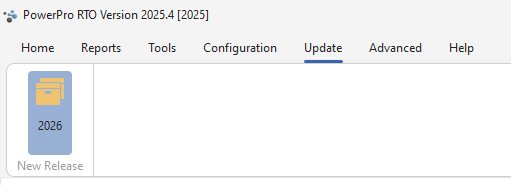
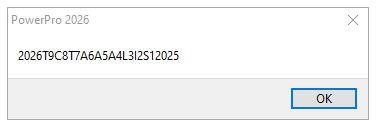
3. Should the following message be displayed please ignore it by pressing OK:
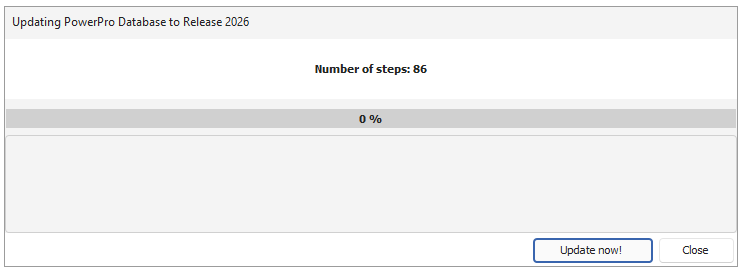
4. The following window should show, click on the Update now! button.
5. Once all database scripts have run successfully, the following message will show:
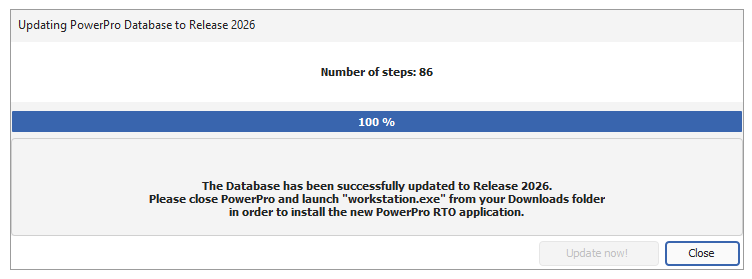
The database structure is now updated to 2026.
By clicking on the Close button, PowerPro will close, the default web browser will open and the PowerPro Windows Application Installer will be downloaded.
On completion of the download, run/execute the installer following the prompts.
Updating the PowerPro Windows Application on Subsequent Systems
On each subsequent system, you will need to install the PowerPro 2026 Windows Application:
Make sure PowerPro is closed on that system.
Download the PowerPro 2026 Windows Application Installer by clicking here.
Run/Execute the installer following the prompts.
All done! You should now be able to login to PowerPro 2026 using your regular user name and password.