Have you received a custom report from the PowerPro team via email? Save it it to your Downloads folder and follow these instructions to install a new or updated report:
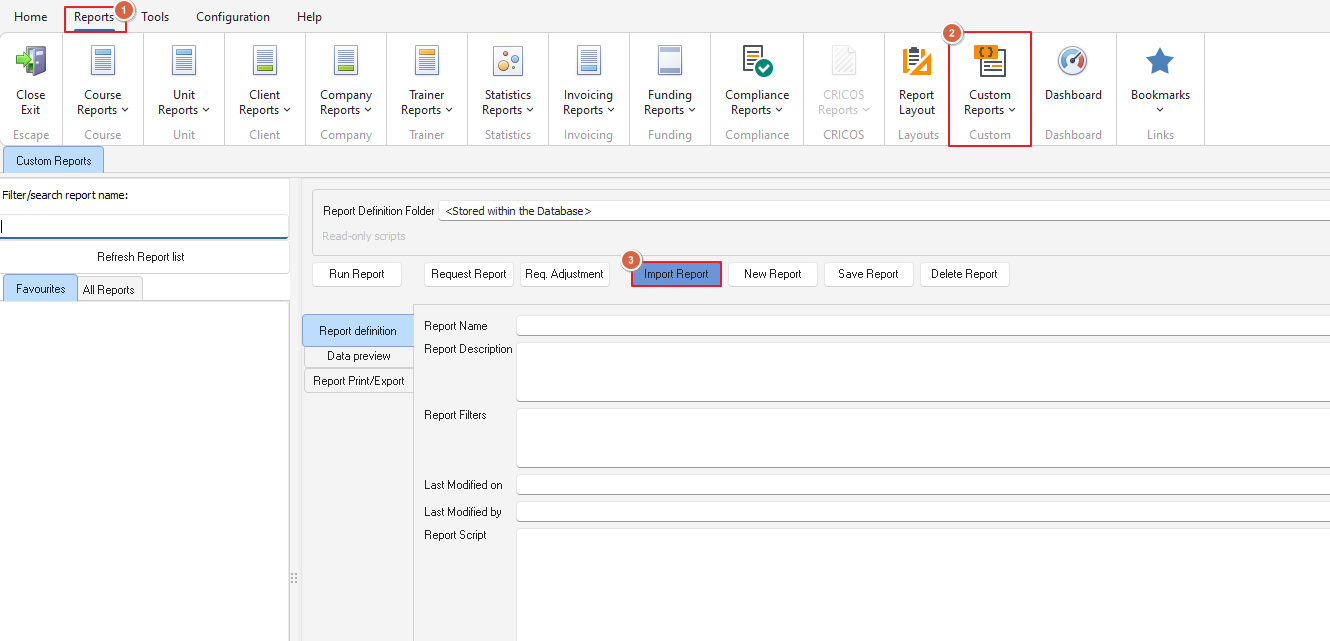
1) Select the Reports ribbon tab
2) Open the Custom reports window
3) Click on the Import Report definition report button
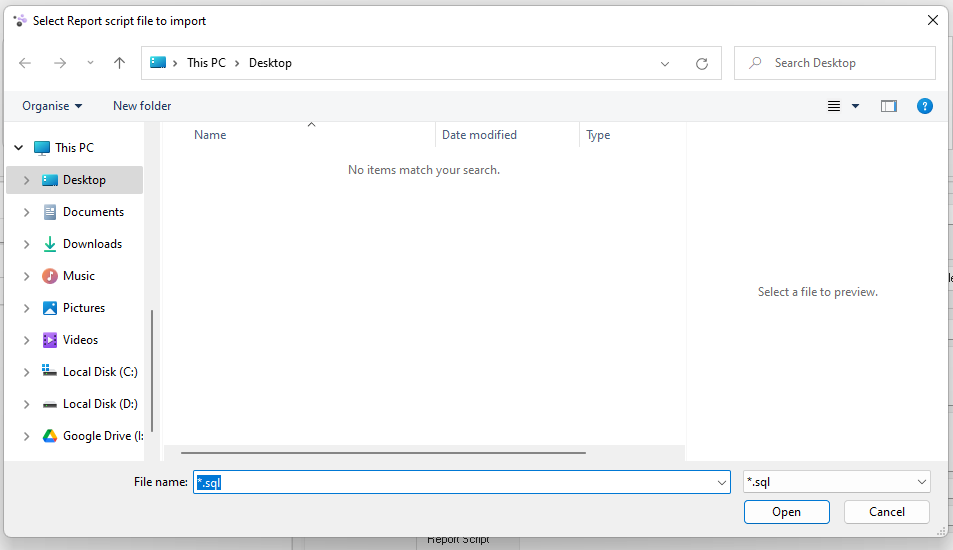
4) If you have not already - save the sql. file emailed to you from the PowerPro team to your computer for easy access. Locate and select the file and click 'open'
5) Success! The report is now imported
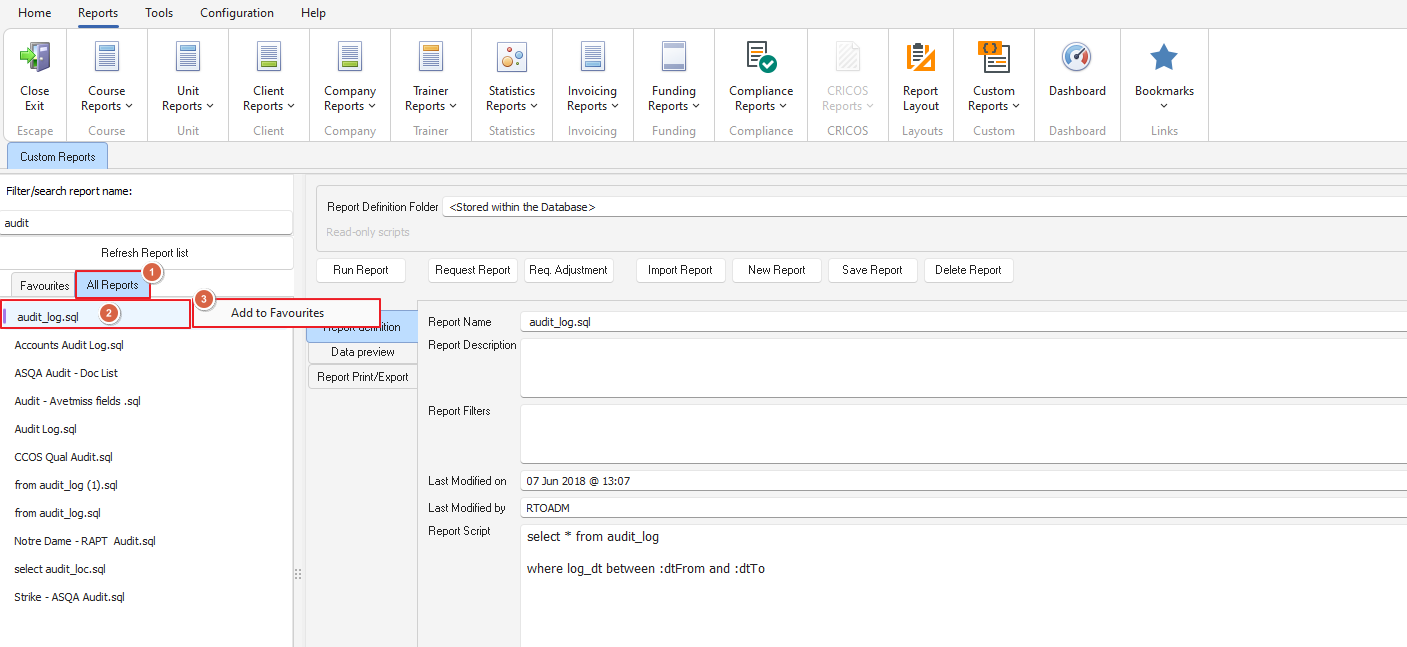
6) Optionally once imported - you can right click on the report name to add it to your favorites for easier access: